Digimagaz.com – For years, users have relied on WhatsApp as a fast and simple way to share moments. But one feature still flies under the radar for many people: the option to send photos and videos in HD quality.
While the app is known for compressing media to save data and speed up delivery, it now gives users more control over image and video resolution. If you care about clarity, detail, and sharper playback, switching to HD can make a noticeable difference.
Here is what that really means, how to enable it, and what to consider before making it your default.
What “HD” Actually Means on WhatsApp
When sending photos in standard mode, WhatsApp compresses them significantly. In HD mode, photos can reach up to 4096 x 2692 resolution instead of the much lower default resolution.
For videos, the difference is just as meaningful. Standard uploads are typically capped at 480p, while HD allows up to 720p. That is still below full 1080p or 4K recording quality, but it preserves far more detail compared to the default setting.
In practical terms:
-
Landscapes look sharper
-
Text in screenshots is easier to read
-
Faces retain more detail
-
Motion in videos appears smoother
It is not full-resolution sharing, but for everyday messaging, it is a clear upgrade.
How to Send HD Photos and Videos in a Chat
Sending media in HD is simple, though the option is easy to miss.
If You’re Taking a New Photo or Video
-
Open a chat.
-
Tap the camera icon.
-
Capture your photo or video.
-
Tap the HD button at the top of the preview screen.
-
Choose HD quality and send.
If You’re Sending Existing Media
-
On iPhone: Tap the “+” icon, then select Photos.
-
On Android: Tap the paperclip icon, then choose Gallery.
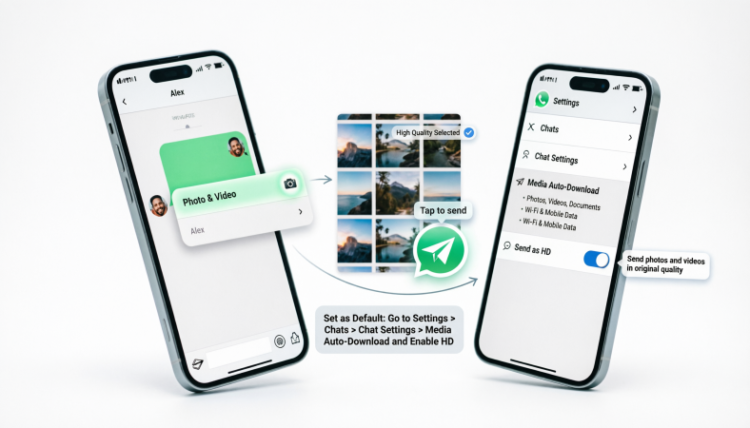
After selecting your files, tap the HD option before sending.
If you are on mobile data, the app may prompt you to confirm before uploading a larger file. This is normal, since HD files consume more bandwidth.
How to Set HD as the Default Upload Quality
If you frequently send detailed photos or videos, manually selecting HD every time can feel repetitive. Fortunately, you can make HD the default.
Here is how:
-
Open WhatsApp.
-
Go to Settings.
-
Tap Storage and Data.
-
Under Media Quality, select Upload Quality.
-
Choose HD Quality.
Once enabled, all future uploads will default to HD without needing manual selection.
This is particularly useful for creators, business owners, or anyone who regularly shares product photos, event coverage, or marketing materials.
How to Automatically Download HD Media
Sending in HD is only part of the experience. If someone sends you HD photos or videos, you can also adjust your settings to auto-download them in high quality.
To enable this:
-
Open Settings.
-
Tap Storage and Data.
-
Under Media Quality, select Auto-Download Quality.
-
Choose HD Quality.
Be mindful that this setting increases storage use, especially in active group chats.
The Trade-Offs You Should Consider
HD media improves clarity, but it comes at a cost.
1. Larger File Sizes
HD photos and videos take up more storage space on your device and in cloud backups.
2. Higher Data Usage
If you do not have an unlimited mobile plan, frequent HD uploads can increase data consumption quickly.
3. Slower Upload Times
On weaker networks, HD files may take longer to send compared to compressed versions.
For users on limited data plans or older devices with low storage, standard quality may still be the smarter option.
When Should You Use HD?
HD is especially useful when:
-
Sharing professional photos
-
Sending important documents or screenshots
-
Delivering marketing visuals
-
Sharing travel or event videos
-
Posting media to other platforms after downloading
If the image is casual or temporary, standard quality often works fine.
Why This Feature Matters More Now
Messaging apps are increasingly replacing email and even cloud sharing in daily communication. As more businesses, freelancers, and creators operate directly through messaging platforms, media quality becomes more important.
WhatsApp’s HD option signals a subtle shift. Instead of prioritizing only speed and compression, the platform is giving users more control over how their content appears on the receiving end.
It may not deliver original 4K quality, but for everyday use, HD mode strikes a practical balance between clarity and efficiency.
If you have never tried it, enabling HD for your next photo or video is worth the experiment. The difference is immediate, and once you notice it, it is hard to go back.