Table of contents:
Digital Magazine – Android 16 has arrived on Pixel devices and a growing list of phones from major manufacturers, bringing smoother animations, refined Material You visuals, and under-the-hood performance gains. Yet for many users, the update also highlights an uncomfortable truth. Even with new software, an Android phone that feels sluggish can quickly sap the excitement of upgrading.
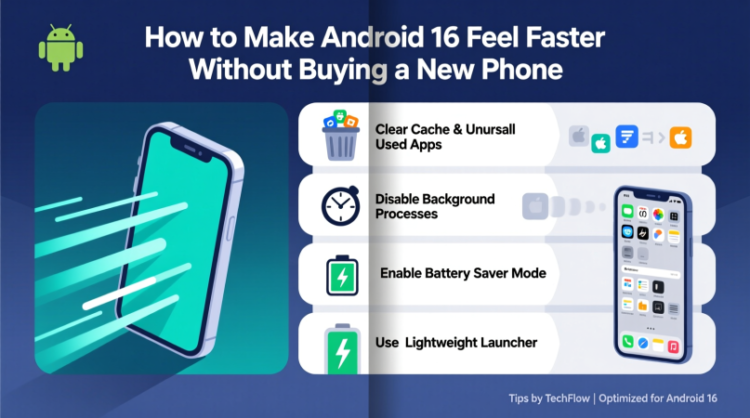
Before assuming your device has reached the end of its useful life, there is a simple maintenance step worth revisiting: clearing cached data. It is one of the fastest ways to free up storage, resolve minor glitches, and restore responsiveness without touching your personal files or accounts.
Why cache can slow down your Android device
Cached data is designed to help apps and websites load faster by storing temporary files such as images, scripts, and layout elements. Over time, however, this data can pile up, become outdated, or even corrupted. When that happens, apps may stutter, freeze, or consume more storage than necessary.
Android 16 is more efficient than previous versions, but it still relies on cache behavior that assumes occasional cleanup. Clearing cache does not erase your photos, messages, or login details. Instead, it forces apps and browsers to rebuild fresh temporary files, often fixing performance issues in the process.
How to clear cached data from Android apps
The exact menu names can vary slightly depending on your phone’s manufacturer, but the overall process is consistent across Android 16 devices.
Start by opening Settings and navigating to Storage. From there, tap Apps to see a full list of installed applications. If you do not see an Apps option immediately, using the search bar within Settings will get you there faster.
Select an app that takes up significant space, such as social media, streaming, or shopping apps. Tap Storage and cache, then choose Clear cache. Be careful not to tap Clear storage, as that option resets the app completely and removes saved data.
Repeat this step for other apps that consume a large amount of storage. Many Android phones let you sort apps by size through a menu in the top-right corner, making it easier to identify the biggest storage users.
Some devices also integrate cleanup suggestions through the Google Files app. These prompts can help you remove unused apps, duplicate files, or large downloads, offering an additional layer of storage management beyond cache clearing.
Clearing Chrome’s cache on Android 16
If web pages feel slow or behave oddly, Chrome’s cache may be the culprit. Open Chrome, tap the three-dot menu, and go to History, then Clear browsing data.
Choose a time range and make sure Cached images and files is selected. You can also clear cookies or browsing history, but keep in mind that doing so may log you out of websites. Once you tap Clear data, Chrome will rebuild its cache the next time you browse.
Newer versions of Chrome offer a quicker shortcut. Tapping the menu may show a Clear browsing data option directly, which opens a simplified pop-up for faster cleanup.
What clearing cache actually does and does not do
Clearing cache removes temporary files only. It does not delete app data, personal settings, or saved accounts. For example, clearing cache in a social media app removes locally stored images and videos, but your profile and login remain untouched.
Performance improvements are often immediate, especially if an app was struggling with outdated files. Cache clearing is also a common troubleshooting step for apps that crash or refuse to load properly.
How often should you clear cache?
There is no strict schedule. For most users, clearing cache every three to six months is enough. If you notice sudden slowdowns, storage warnings, or app glitches, that is usually a good signal to do a cleanup.
A small habit that extends your phone’s lifespan
Android 16 brings meaningful improvements, but routine maintenance still matters. Clearing cached data is a quick, low-risk way to keep your phone running smoothly and avoid unnecessary upgrades. In an era where new devices are more expensive than ever, a few minutes of cleanup can make your current Android feel refreshingly close to new.